
How to Use the Minecraft Launcher — A Practical Guide
The Minecraft Launcher is the thing you open to actually play the game — and for something so fundamental, it confuses a surprising number of players. Part of the confusion is that "Minecraft Launcher" now means different things depending on when you bought the game, what edition you own, and which platform you're on. This guide cuts through the noise: what the launcher does, how to manage multiple editions, how to install content, and how to fix it when it breaks.
If you just want to download the launcher and start playing, that link will get you there. But if you want to understand what you're working with — especially if you own both Bedrock and Java, want to install add-ons, or keep hitting launch errors — read on.
What the Minecraft Launcher Actually Does
The Minecraft Launcher is an application that manages your Minecraft installations. On Windows, a single launcher handles both Bedrock Edition and Java Edition (plus Minecraft Dungeons, if you own it). On other platforms, the situation is different — we'll get to that.
Here's what the launcher handles:
- Edition selection — Switch between Bedrock and Java from a sidebar without juggling separate apps
- Game updates — Downloads and applies patches automatically. Bedrock has had 142 documented updates tracked in our catalog.
- Profile management — Multiple game profiles with different settings, mods, or versions
- Version management (Java) — Install and switch between any historical Java Edition version
- Account authentication — Signs you in with your Microsoft account
What it doesn't do: the launcher doesn't run the game itself. It downloads the right files, sets up the environment, and hands off to the actual game executable. If the game crashes after launching, that's usually a game-side problem, not a launcher problem. The distinction matters when troubleshooting.
Bedrock vs Java — The Launcher Difference
The unified Windows launcher is the only place where both editions live side by side. Everywhere else, they're completely separate.
Windows (Unified Launcher)
The Windows launcher has a left sidebar with tabs for Minecraft (Bedrock), Minecraft: Java Edition, and Dungeons. You pick which one you want and hit Play. If you bought Minecraft after June 2022, you likely have both editions bundled under one Microsoft account — a deal that didn't exist before and confused a lot of people who had to rebuy.
Java profiles are managed within the launcher itself — you can create installations with specific game versions, mod loaders (Fabric, Forge), and custom directories. Bedrock doesn't have this kind of profile system because Bedrock handles versions differently (automatic updates through the Microsoft Store).
Console (Xbox, PlayStation, Switch)
Bedrock only. There's no launcher in the traditional sense — the game is a regular app installed through the platform's store. Updates happen through the store's update system. You can't install Java Edition on consoles at all.
Mobile (iOS, Android)
Bedrock only, installed through the App Store or Google Play. No launcher UI. Updates come through the app store. Android users have more flexibility for sideloading content than iOS users.
macOS and Linux
Java Edition only (with rare exceptions). The Java launcher on these platforms works identically to the Java side of the Windows launcher — version management, profiles, mod loader support, the whole thing.
Managing Game Versions
This is where the Bedrock vs Java split matters most, and where a lot of players get tripped up.
Java Edition: Full Control
Java's launcher lets you install and run any version of the game ever released — from the earliest Classic builds to the latest snapshots. Create an "installation" (Java's term for a profile), pick a version, and launch it. You can have dozens of installations with different versions running different mod configurations, each with its own game directory so they don't interfere.
This is critical for modding. Most mods target specific versions, and a mod built for 1.20.4 won't work on 1.21. Having separate installations means you can keep a stable modded setup on one version while testing snapshots on another.
Practical tip: always create a separate installation for snapshots and pre-releases. Running a snapshot on your main world can corrupt it if the snapshot has bugs (and they usually do — that's the point of snapshots).
Bedrock Edition: Automatic Only
Bedrock doesn't let you choose versions. Updates come through the platform's store (Microsoft Store on Windows, App Store, Google Play, console stores) and are applied automatically. You always run the latest release unless you're enrolled in the Bedrock Preview/Beta program.
This is simpler but inflexible. If an update breaks something — a favorite add-on, a redstone contraption that relied on a specific behavior, a server that hasn't updated yet — you can't roll back. Bedrock Preview is a separate app that runs upcoming versions for testing, similar to Java snapshots but as a separate installation entirely.
Recent Bedrock Updates
Here are some of the most recent Bedrock updates tracked in our catalog, showing the kind of patches that get pushed through the launcher's update system:
- Play as the Dark Knight — Play as the Dark Knight
- Minecraft 1.19.20 Update — Minecraft 1.19.20 Update
- 1.19.20.24 Beta Preview — 1.19.20.24 Beta Preview
- Swim on down to Bikini Bottom — Swim on down to Bikini Bottom
- Swim on down to Bikini Bottom — Swim on down to Bikini Bottom
- 1.19.20.23 Beta Preview — 1.19.20.23 Beta Preview
Keep an eye on MinecraftPal's release feed for a running log of new content and updates.
Installing Marketplace Content Through the Launcher
The Minecraft Marketplace is built into Bedrock Edition — you don't interact with it through the launcher directly, but through the game itself. Once Bedrock launches, the Marketplace is accessible from the main menu. With 36,386 items available (plus 2,063 featured servers), there's a lot to explore.
The purchase and install flow:
- Browse or search for content in-game, or use MinecraftPal to find items with better filtering and sorting than the in-game store offers
- Buy with Minecoins (Minecraft's virtual currency) or access free items — see the Minecoins FAQ for purchasing details
- Download happens automatically — the content installs to your local storage
- Apply the content — skin packs activate from the dressing room, world templates create new worlds, resource packs and behavior packs are enabled in world settings
Everything you buy is tied to your Microsoft account. If you play on multiple devices (say, a PC and a phone), your purchases sync across all of them. The content might need to re-download on each device, but you won't have to rebuy.
Here are some of the most popular items on the Marketplace right now — the kind of content you can access the moment you launch the game:
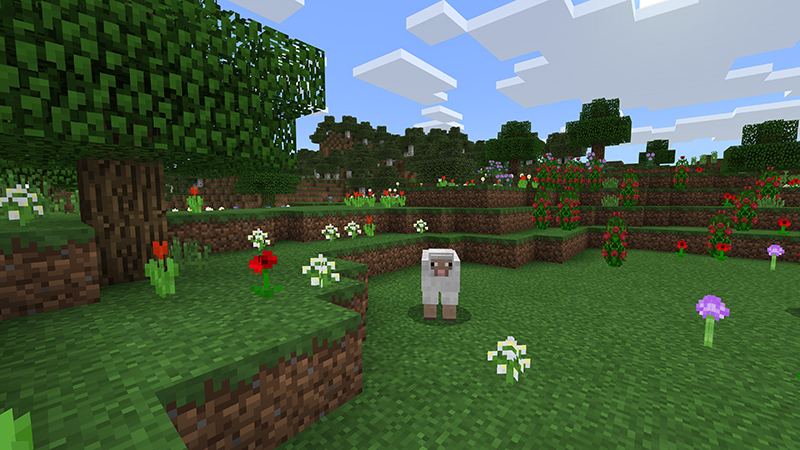
Minecraft Classic Texture Pack
by Minecraft · 4.6/5 (962,457 ratings) · Free
The classic Minecraft look you know and love! We recently updated the game with new and stylish textures, but if you prefer more of a retro flavor to your Minecraft, this is the pack for you! Why n...
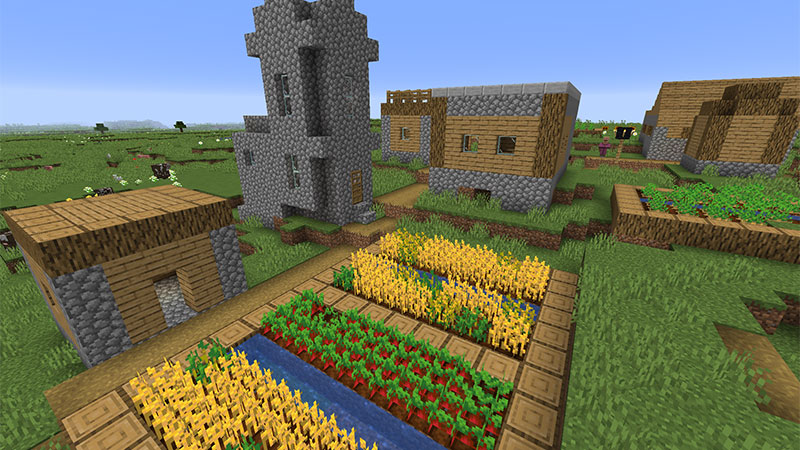
Minecraft Texture Update Beta
by Minecraft · 4.5/5 (884,358 ratings) · Free
The extraordinary Minecraft Texture Update has been on the Java Edition in beta for quite a while and now It’s finally on Bedrock! We’re renovating the old textures of Minecraft and polishing them ...

Natural Texture Pack
by Minecraft · 4.3/5 (881,182 ratings) · 490 Minecoins
Designed to give your Minecraft worlds a more natural look.
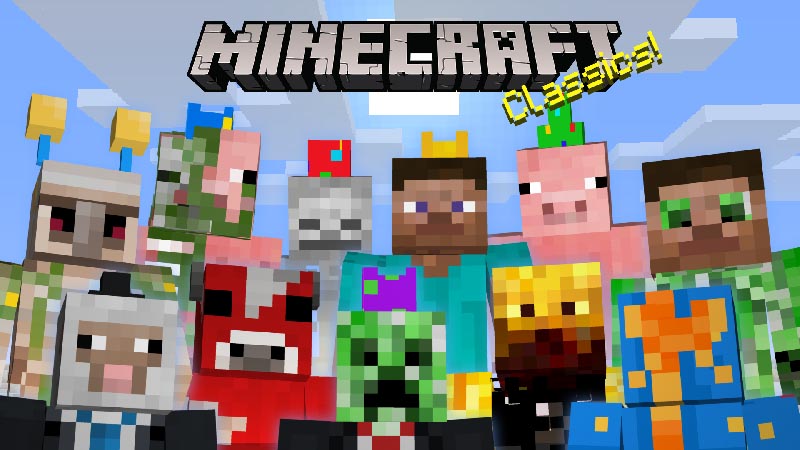
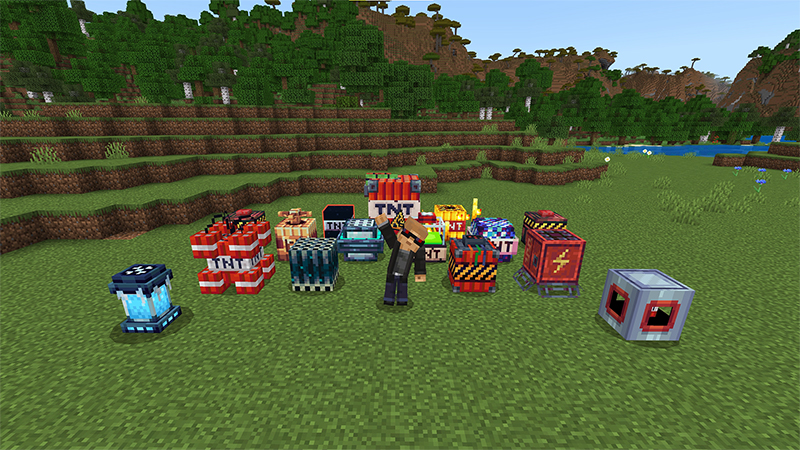
More TNT! Add-On
by Tsunami Studios · 4.8/5 (469,053 ratings) · Free
This explosive Add-On is pretty simple… It adds more TNT to any world you want! Craft yourself a wide selection of super overpowered and unique TNT types!
Installing Mods and Add-Ons Safely
This is where things get platform-specific and where the most mistakes happen.
Java Edition: Mod Loaders
Java mods require a mod loader — Forge, Fabric, NeoForge, or Quilt. The process:
- Download and run the mod loader installer (from the official site — forge, fabricmc, etc.)
- The installer adds itself as a launcher profile/installation
- Launch the game using that profile
- Drop .jar mod files into the
modsfolder (usually at.minecraft/mods)
The launcher makes this manageable by letting you create separate installations per mod loader and version. Keep modded and vanilla installations separate.
Bedrock Edition: Add-Ons and Behavior Packs
Bedrock add-ons (the official term for Bedrock mods) use .mcaddon or .mcpack files. The official installation guide covers the process, but here's the short version:
- Download an .mcaddon or .mcpack file from a trusted source
- Open the file — on most platforms, it auto-imports into Minecraft
- Go to world settings and enable the behavior pack and/or resource pack
On Windows, double-clicking an .mcaddon file should open Minecraft and import it automatically. On mobile, you may need to use a file manager to open the file with Minecraft. On console, you can't sideload add-ons at all — console players are limited to Marketplace content.
Safety matters. Stick to known sources: the Marketplace (curated), MCPEDL (community-vetted), and CurseForge (platform-moderated). Random download sites advertising "free Minecraft mods" are a leading source of malware targeting younger players. If a site asks you to complete surveys, install browser extensions, or run .exe files to get Minecraft content, close it immediately.
For a deeper dive on mods vs Marketplace add-ons and the tradeoffs between them, check out our mods vs add-ons comparison.
Common Launcher Issues and Fixes
The Minecraft Launcher is not the most stable piece of software ever written. Here are the problems players hit most often and how to actually fix them, based on Microsoft's own troubleshooting guides and community experience.
"Unable to Update the Minecraft Runtime Environment"
This Windows error usually means the launcher can't write to its install directory. Run the launcher as administrator, or check that your antivirus isn't blocking it. Windows Defender occasionally flags the launcher's update process as suspicious — temporarily disable real-time protection, update, then re-enable it.
Launcher Opens But Game Won't Start
On Java, this is almost always a mod conflict or outdated mod loader. Try launching vanilla (no mods) first. If vanilla works, your mod setup is the problem — start by updating your mod loader, then remove mods one at a time until you find the culprit. On Bedrock, try resetting the app through Windows Settings → Apps → Minecraft → Advanced Options → Reset.
"Failed to Login" or Authentication Errors
Microsoft account authentication can fail when Xbox Live services have outages (more common than you'd think), when your account's two-factor authentication token has expired, or when cached credentials are stale. Sign out of the launcher completely, close it, reopen it, and sign back in. If that doesn't work, check Xbox Live status — if services are down, all you can do is wait.
Bedrock Won't Update Through Microsoft Store
The Microsoft Store's update mechanism is infamously flaky. Try: open the Microsoft Store app → Library → Get updates. If that doesn't work: Settings → Apps → Microsoft Store → Advanced Options → Reset. As a last resort, uninstall and reinstall the game (your worlds are backed up to your Microsoft account if you have cloud saves enabled, but verify this before uninstalling).
Java Launcher Shows Wrong Version / Old Launcher
If you're seeing the old Mojang-branded launcher instead of the unified Microsoft launcher, you likely have both installed. Uninstall the old one through Add/Remove Programs, then download the current unified launcher. Your worlds and settings will carry over because they're stored in the .minecraft directory, which neither launcher touches during install/uninstall.
Performance After Launch
If the game is slow once it's running, that's not a launcher problem — it's a game performance issue. For Java, allocate more RAM in the launcher's installation settings (Edit → More Options → JVM Arguments, change -Xmx2G to -Xmx4G or higher). For Bedrock, close background apps and check if any resource packs are too demanding for your hardware.
Making the Launcher Work for You
The Minecraft Launcher is utilitarian — it's not trying to be a social platform or a content store. It launches games. Once you understand the Bedrock vs Java split and how each side handles updates and content, most of the confusion disappears.
For Bedrock players, the launcher is mostly invisible. Updates happen automatically, and all your content lives in the Marketplace ecosystem accessible in-game. The launcher just gets you there.
For Java players, the launcher is more powerful — version management, modding profiles, and full control over your installations make it an essential tool. Take the time to set up separate installations for different purposes (vanilla, modded, snapshots) and your life gets significantly easier.
If you're still figuring out which edition is right for you, our Bedrock vs Java comparison breaks that down with real catalog data. And for exploring what the Bedrock Marketplace has to offer, MinecraftPal's full catalog with 36,386 items is the best way to search, filter, and discover content outside the game.
Related Articles

How Much Do Minecoins Cost? A Guide to Prices and Real Value
Minecoins are the only currency the Minecraft Marketplace accepts — but how much do they actually cost in real money, and what do they buy? We break down bundle pricing, the dollar conversion, and what your coins are worth using real catalog data.
Jul 20, 2026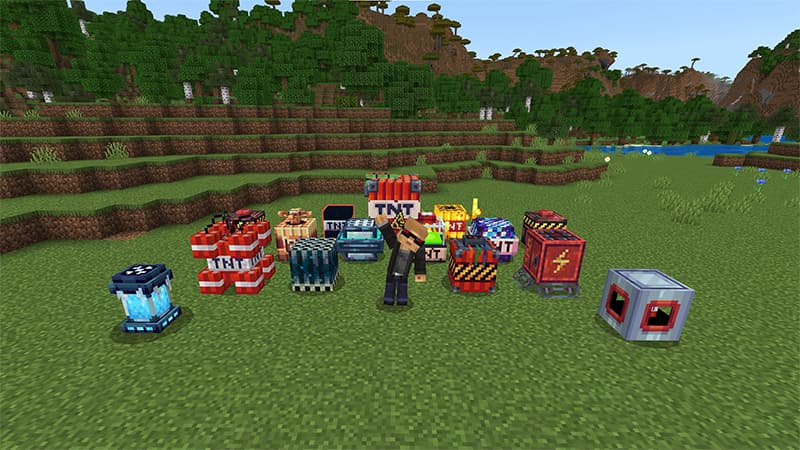
How to Tell if a Marketplace Pack Is Worth Buying
A practical framework for evaluating Minecraft Marketplace content before purchasing — using ratings, review counts, screenshots, videos, and price data from 41,000+ items to help you make smarter buying decisions.
Feb 26, 2026Signs a Marketplace Map Is Just a Reskin
How to spot low-effort reskins on the Minecraft Marketplace before buying. Data-driven red flags, creator patterns, and what genuinely original content looks like — with real examples from the catalog.
Feb 26, 2026
How Marketplace Ratings Actually Work
A real statistical analysis of the Minecraft Marketplace rating system — what the numbers mean, why review count matters more than star average, the cold-start problem for new items, and a leaderboard of the most-reviewed packs. Backed by data from 40,208 catalog items.
Feb 26, 2026